
Direct answer
What is a multi-project expense tracker template?
A multi-project expense tracker template is a spreadsheet that records financial events once, assigns them to projects, and summarizes revenue, expenses, budgets, and operating results across the portfolio. Capital is financing, not operating revenue; this workbook keeps that boundary and shared-cost allocation assumptions visible.
Many multi-project templates focus on tasks, deadlines, labor hours, or planned budgets. Those are useful delivery controls, but they do not answer a founder’s daily financial question: which project earned this money, which project caused this cost, and what is the operating result after shared resources are considered?
The Piveth workbook starts with an event ledger. Each row has an ID, date, project, event type, category, description, amount, and review status. The project summary and dashboard are formulas—not copied snapshots—so changing a transaction updates the visible result. Sample rows demonstrate the method and are clearly labeled for replacement.
Inside the download
Eight sheets with one auditable flow.
Read Me
Five-step setup instructions, input/formula color legend, product links, and explicit operational boundaries.
Setup
Ten project slots, expense budgets, status controls, event-type definitions, and editable categories.
Transactions
Two hundred validated rows for revenue, expenses, and financing capital with dates, projects, categories, and review state.
Allocations
One hundred rows for splitting shared-pool expenses across projects with automatic amount and percentage checks.
Project Summary
Budget, revenue, direct expense, allocated shared cost, total expense, operating result, margin, and capital by project.
Dashboard
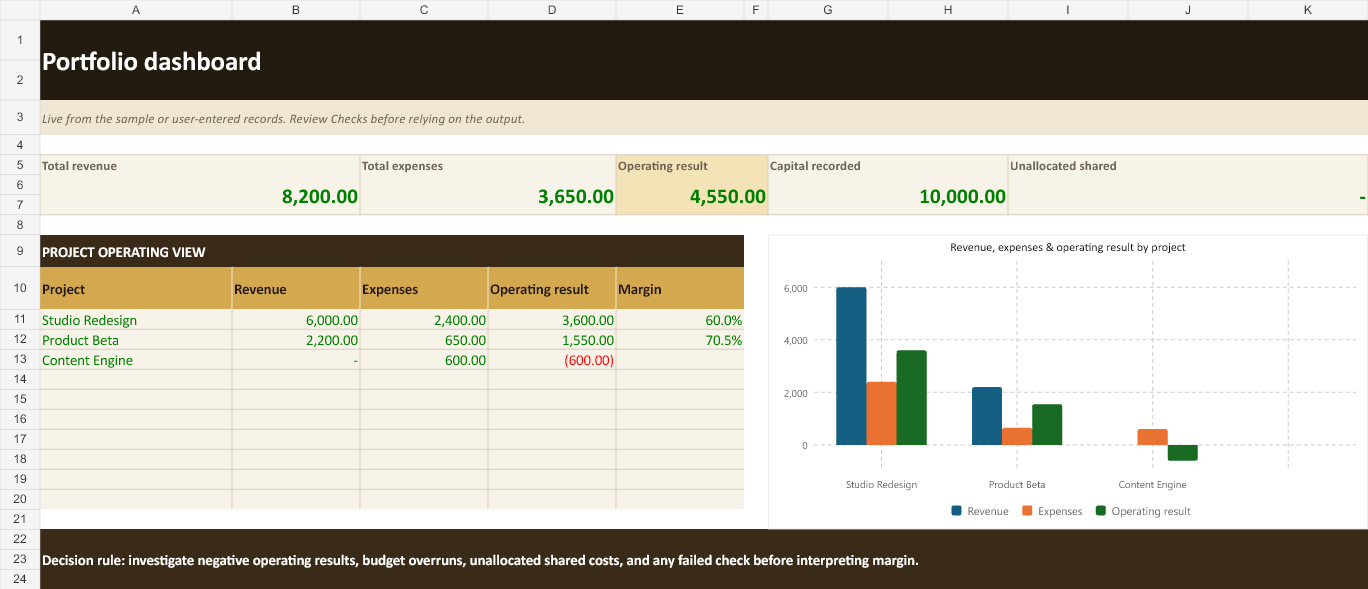
Portfolio KPIs, project comparison table, and a native chart showing revenue, expense, and operating result.
Checks
Six visible reconciliations covering allocations, revenue, direct expenses, capital treatment, and project totals, plus a clear MODEL STATUS.
Sources
Methodology, version, example-data status, allocation assumption, URLs, ownership, and refresh notes.
How to use it
Replace the example, preserve the logic.
- Name the projects you make decisions about.
Replace the three example projects on Setup and add an expense budget for the period. Use products, client engagements, experiments, or internal ventures—not individual tasks.
- Overwrite the EXAMPLE transaction rows.
Use one unique event ID per original transaction. Choose Revenue, Expense, or Capital; assign direct events to a project and truly shared expenses to Shared pool.
- Allocate shared expenses deliberately.
On Allocations, reference the shared event ID once for each receiving project. The percentages for that event must total 100%. A row check flags incomplete or excessive allocations.
- Read results, not just totals.
Project Summary calculates direct and fully loaded operating views. Dashboard reveals project comparisons. A negative operating result or budget overrun is a prompt to investigate classification and project economics.
- Require PASS before relying on the model.
The Checks sheet reconciles shared expenses, revenue, direct expenses, capital exclusion, and project total formulas. PASS validates workbook mechanics—not the truth of the inputs or wisdom of an allocation policy.
Worked example
A shared $500 software expense.
The included example records a $500 software bill once in the Shared pool. The allocation sheet assigns 60% to Studio Redesign and 40% to Product Beta. The workbook calculates $300 and $200 respectively, confirms that the event allocation totals 100%, and includes those amounts in each project’s total expenses.
Studio Redesign also receives $6,000 of customer revenue and incurs $2,100 of direct costs. Its fully loaded operating result is therefore $6,000 − $2,100 − $300 = $3,600, with a 60% operating margin. The allocation basis is illustrative; a real user should replace it with a documented usage, headcount, transaction, or revenue-share rule appropriate to the decision.
The same example includes $10,000 of founder capital. That amount appears as capital recorded but does not increase project revenue or operating result. This prevents a funded project from looking profitable simply because financing cash entered the portfolio.
Use the workbook now.
No form, email, or account is required for the download.
Open in a recent Excel-compatible spreadsheet app. Preserve formulas when importing elsewhere.
Visible mechanics
Core formulas the template applies.
Direct expenses
sum expense events assigned to projectShared-pool events are excluded until allocated.
Allocated shared cost
shared event amount × project allocation %Allocation rows for one event should total 100%.
Operating result
project revenue − total project expensesCapital is excluded because it is financing.
Operating margin
operating result ÷ project revenueBlank when project revenue is zero.
Budget remaining
expense budget − total project expensesA negative result highlights an overrun.
Portfolio result
sum project operating resultsTied back to transaction and allocation checks.
Use it honestly
A management template, not formal books.
The workbook is intentionally currency-neutral and static. It does not import bank transactions, reconcile cash, attach receipts, produce invoices, track payroll, calculate taxes, enforce approvals, or generate statutory statements. It does not decide which shared-cost allocation basis is fair. It only makes the selected basis and its arithmetic visible.
Use the template to understand and improve the project-assignment habit. Keep supporting documents and formal records in the systems responsible for them. When manual updates become stale, duplicated, or difficult to review, move the operating workflow into a product such as Piveth while preserving appropriate accounting controls.
Free for personal and internal business use. You may adapt the workbook for your own operations. Do not resell or redistribute the unmodified template as a standalone product.
Frequently asked questions
Template questions.
Is the project expense tracker template free?
Yes. The Excel workbook is a direct download with no email gate. You may adapt it for your own personal or internal business use.
What does the workbook track?
It tracks project revenue, direct expenses, shared-cost allocations, financing capital, expense budgets, operating results, margins, and portfolio totals.
How do I split a shared expense across projects?
Record the original expense once in the Shared pool, then add one allocation row per receiving project. The allocation percentages for that event should total 100 percent.
Does capital count as project revenue?
No. Founder, investor, or lender capital is tracked separately as financing and is excluded from operating revenue, operating result, and project margin.
Does the template replace accounting software?
No. It is an operational management template, not a bookkeeping, reconciliation, tax, invoicing, payroll, or statutory reporting system.
Can I add more projects and transactions?
The template includes ten project slots, 200 transaction rows, and 100 shared-cost allocation rows. The formulas and validations are prefilled across those ranges.
From template to operating habit
Keep project numbers current.
Use the workbook immediately. When manual capture becomes the constraint, start Piveth with one real project and three real entries.